 UML Wizard
Features
Everything UML Wizard does, from drawing the first class to generating the code behind it.
Seven diagram types, organised in projects
UML Wizard draws a practical subset of UML 2.5.1 notation. Keep every view of a system in one project file, grouped in folders, and switch between them in tabs.
- Class — classes, abstract classes, interfaces, enumerations; inheritance, realization, association, aggregation and composition with multiplicities.
- Sequence — actors and lifelines; synchronous calls, replies and asynchronous messages.
- State machine — initial and final states, choices, guards, effects and self-transitions.
- Activity — actions, decisions and merges, forks and joins.
- Use case — actors, system boundaries, «include», «extend» and generalization.
- Component — components, provided interfaces and dependencies.
- Deployment — devices, nodes, nested execution environments, artifacts and «manifest».
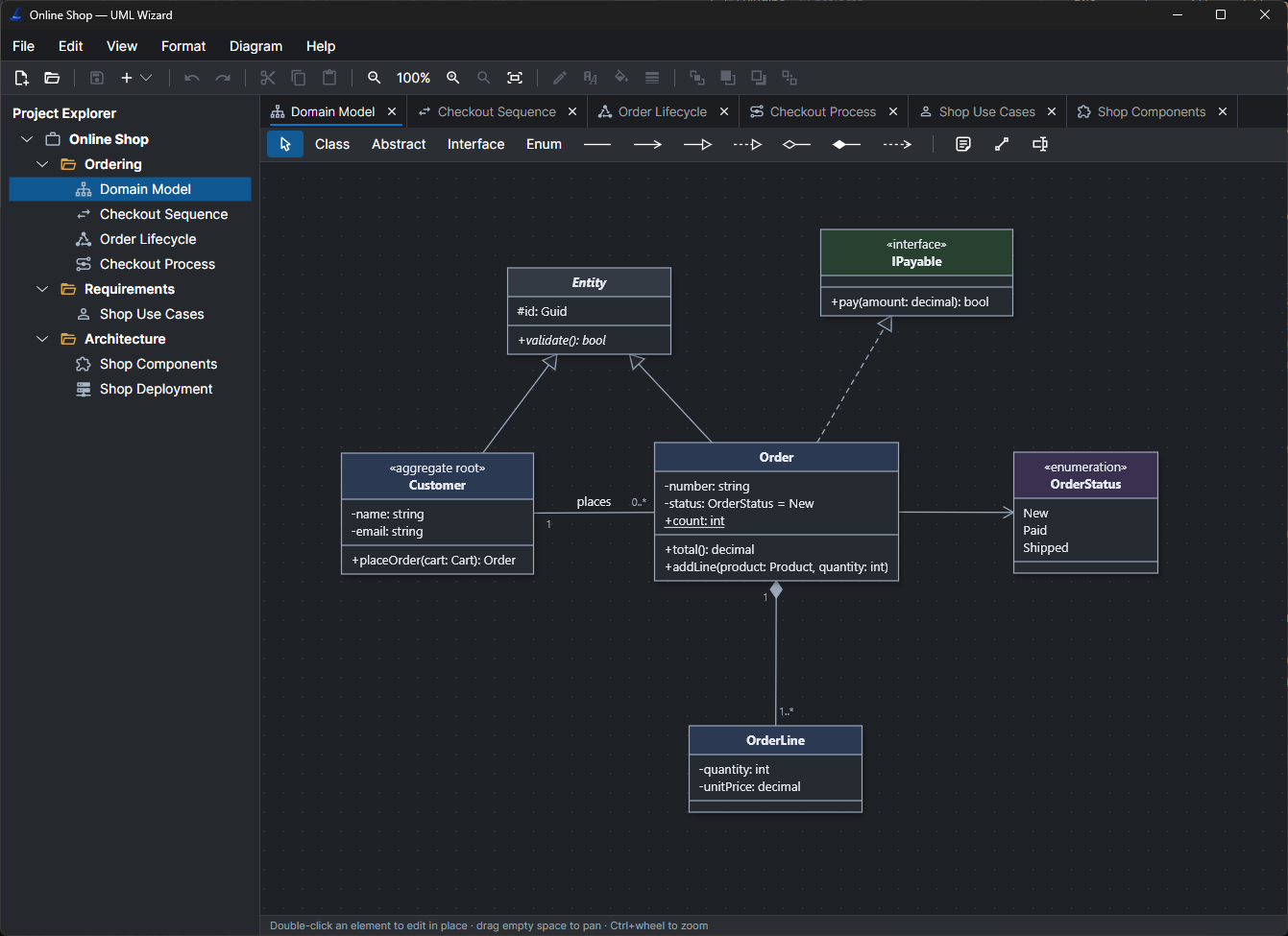
Fast to draw, easy to polish
Type in UML notation where the element is, and let the diagram follow.
In-place editing
Double-click or press F2 and type -status: OrderStatus = New; UML Wizard parses visibility, types and defaults.
Undo, redo, clipboard
Every change is undoable. Cut, copy and paste elements within and between diagrams.
Arrange Diagram
Lay out a diagram automatically, whatever its type, then fine-tune by hand.
Fonts, colours, lines
Format fills, borders, line colours and thickness, and stacking order; set defaults per diagram type.
Notes and tagged values
Attach notes to elements, add free text boxes, and record tagged values on diagrams, classes and members.
Light and dark themes
Pick a theme, the interface font and display language in Preferences (Ctrl+,).
From class diagram to source files
Choose Diagram → Generate Code…, pick a language, a namespace and an output folder. UML Wizard lists the files it will write, marks those it would replace, and notes anything a language cannot express.
| Diagram | Becomes (C#) |
|---|---|
| Class / abstract class | class, abstract class |
| Interface | interface |
| Enumeration | enum |
| Attribute | auto-property, or _field when private |
| Association end | private field, List<T> when many |
| Operation | method that throws NotImplementedException |
Reverse-engineer an existing codebase
Import a folder of C#, C++, Java, Kotlin, Ruby or TypeScript code and get a class diagram of its types, members and relationships. The namespace each class came from is kept as a tagged value.
src/
├─ Domain/
│  ├─ Order.cs
│  ├─ OrderLine.cs
│  └─ Customer.cs
└─ Payments/
   └─ IPayable.cs

  ↓  File → Import Source Folder…

Class diagram: 4 types, 5 relationshipsWorks with the tools you already use
PlantUML
Import and export every diagram type as PlantUML text, for docs-as-code and version control.
OpenAPI
Import an API description as a class diagram, and export it back without losing what the diagram cannot show.
PNG export
Export any diagram as a PNG image, with a white or transparent background.
A model that suggests; UML Wizard that decides
The assistant is off until you set up a service in Preferences. When it is on:
- Diagram → Create with AI draws a new diagram, of any type, from a description.
- View → AI Chat (Ctrl+Alt+I) discusses the active diagram and proposes changes, which you apply as one undoable step.
- The model's output is parsed and validated by UML Wizard itself; invalid output is never drawn as is.
- Use Claude, any OpenAI-compatible service, or a local model with Ollama or LM Studio to keep diagrams on your machine.
- API keys are kept in the operating system's credential store, never in the settings file.
assign, ask customer, reply, resolve and reopen.Create diagram ↵
Add a language without touching the app
Every code generation and code import language ships as a plug-in DLL. Write your own against a small interface, drop it next to the application, and it appears in the language list.
Writing a code generator plug-in →
Writing a code import plug-in →
| Keys | Action |
|---|---|
| F2 / Enter | Edit in place / open the Edit dialog |
| Ctrl+Z / Ctrl+Y | Undo / redo |
| Ctrl+Plus / Ctrl+Minus / Ctrl+0 | Zoom in / out / actual size |
| Ctrl+Alt+L | Show or hide the Project Explorer |
| Ctrl+Alt+I | Show or hide the AI chat |
| F1 | Open the User Manual |
Try it on your own system
Windows, macOS and Linux. No installer, no runtime to install.